Password Manager
The VaultysHub password manager centralizes all your credentials in one secure place. It is organized into three distinct vaults, accessible from the tabs at the top of the page.
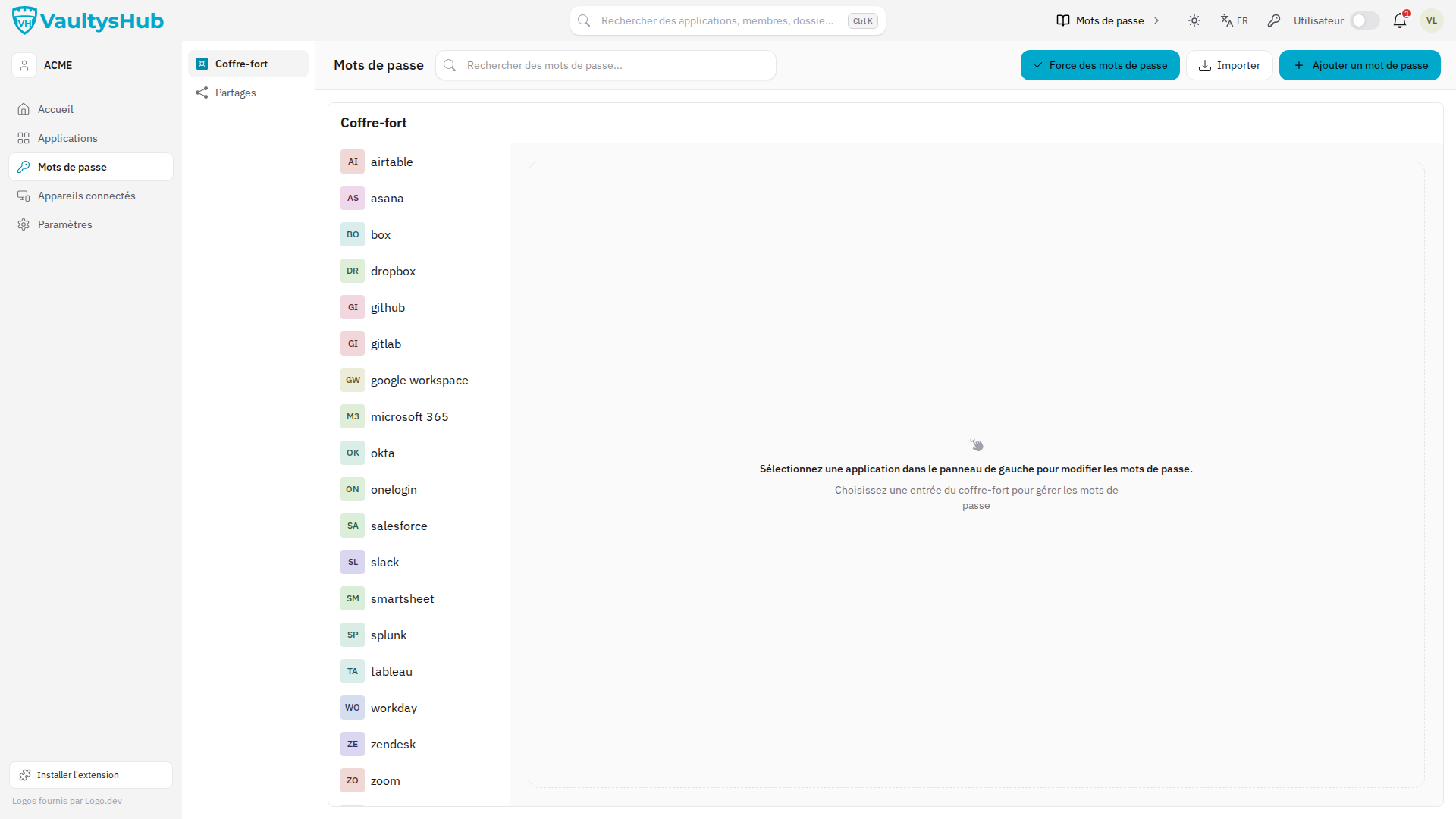
The Three Vaults
Company Vault
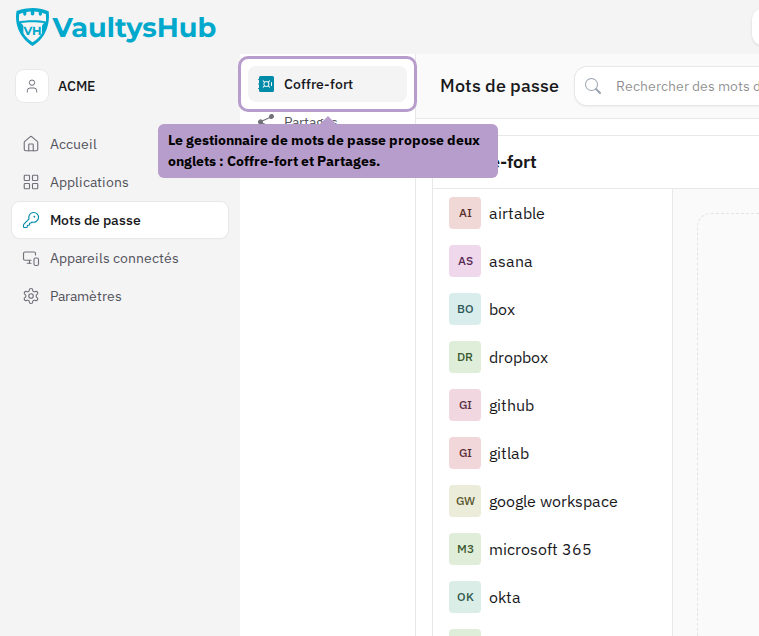
The company vault groups the applications authorized by your organization that you have access to. For each one, you can set your personal password and view the shared passwords at the folder level if shared credentials have been configured.
My Personal Vault
The personal vault allows you to store passwords for applications that are not part of your organization's catalog or to which you do not yet have access. These entries appear in the Vault tab, after the applications of your organization.
Click on Add a Password to create a new entry.
Shared with Me
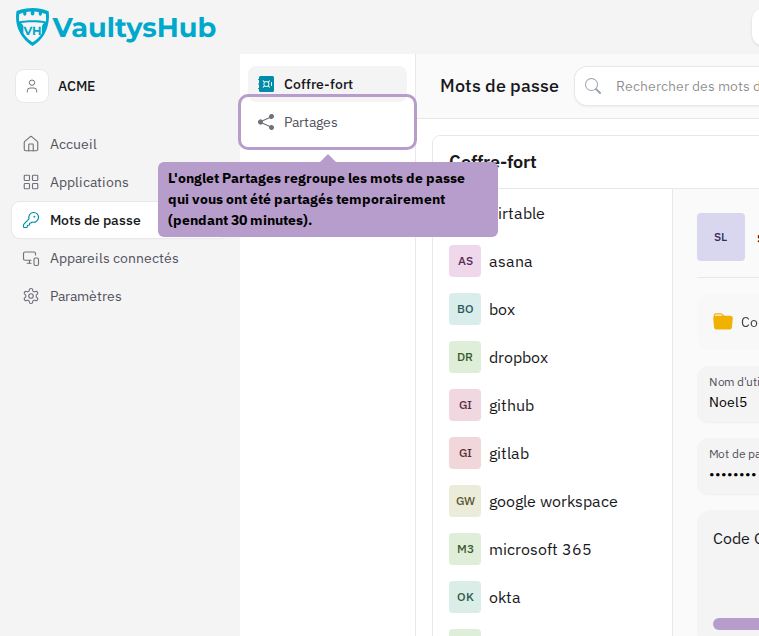
The Shares tab groups the passwords that have been temporarily shared with you by another user. Shared access automatically expires after 30 minutes.
Managing Application Passwords
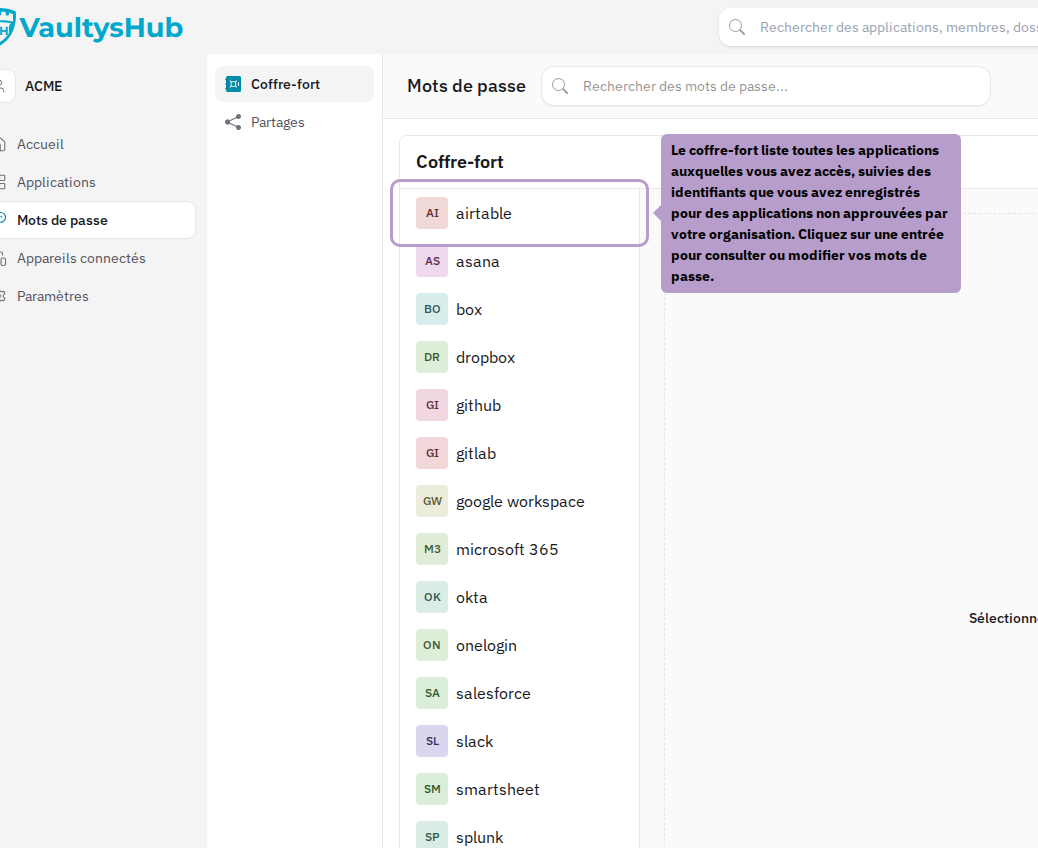
Click on an application in the list to open its password management panel.
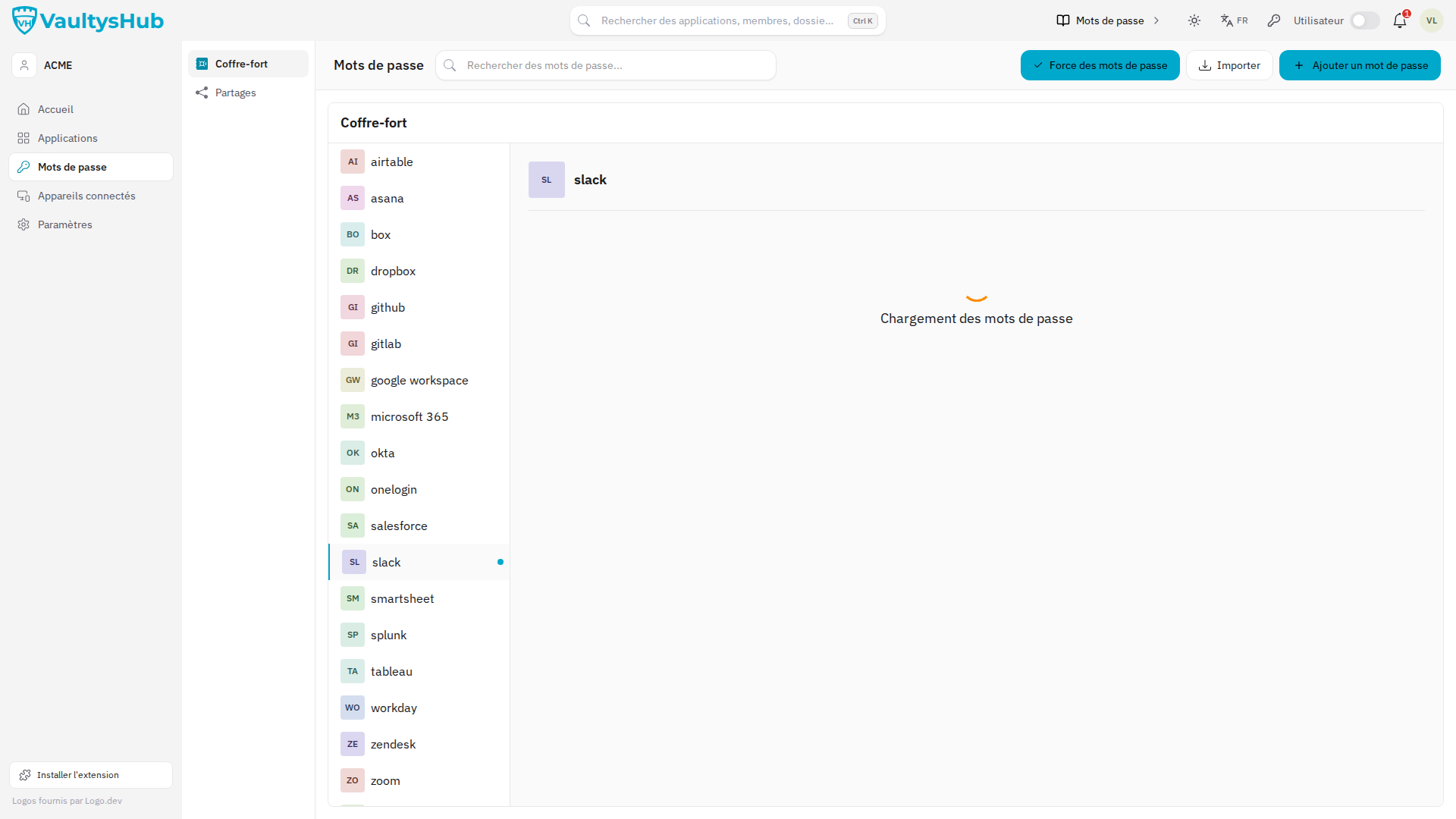
You can add, modify, or delete your credentials for this application.
Hidden Shared Password
An administrator can hide the common password of an application in a folder. You can still log in to the application, but you cannot view or copy this password: it appears as "Hidden by the administrator," with a lock icon, without a button to display or copy it. The username and one-time code (TOTP) remain visible and copyable.
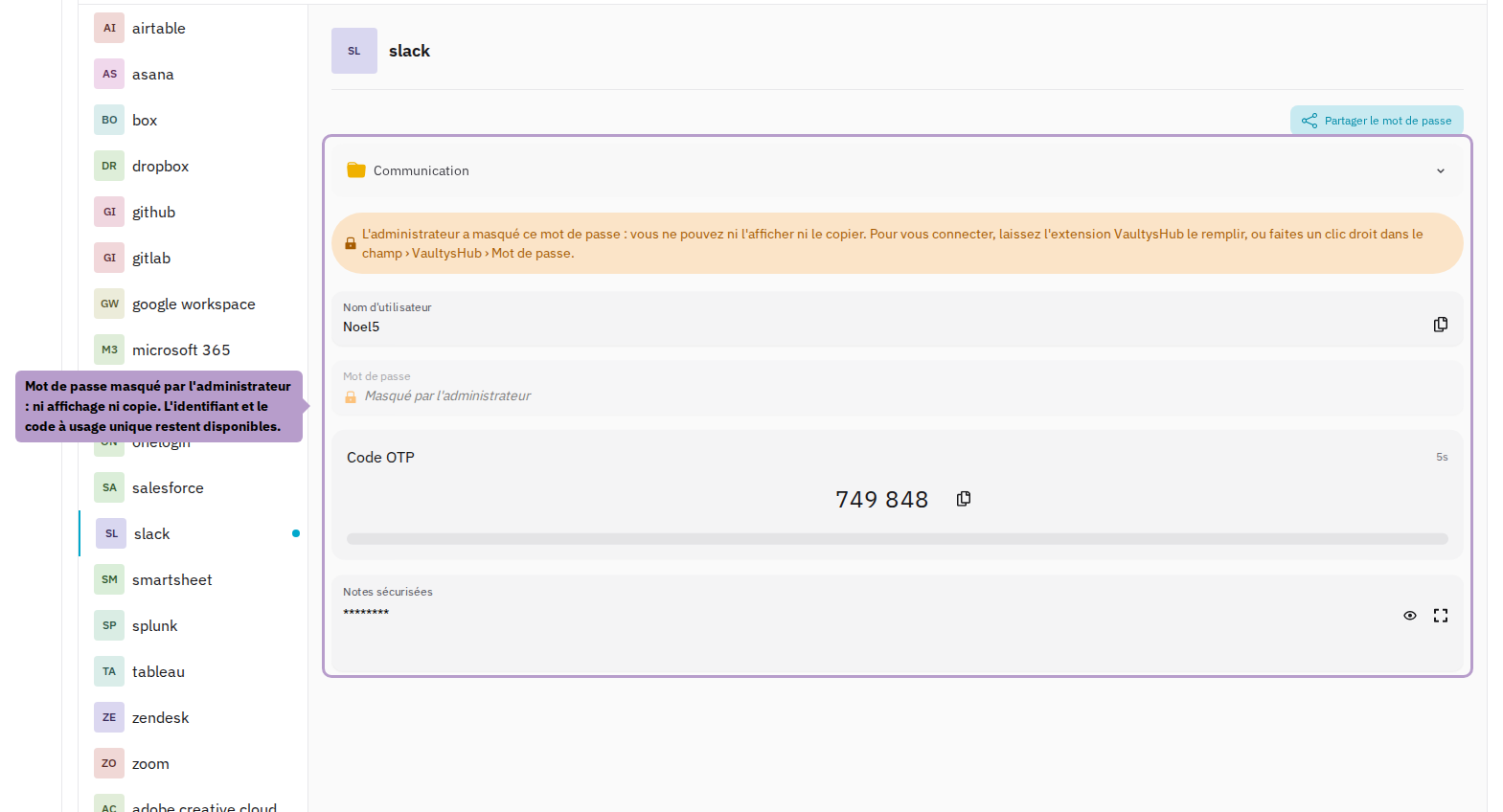
To log in, use the VaultysHub extension:
- Open the application's login page: the extension automatically fills in the username and password.
- If the autofill does not find the field, right-click in the password field › VaultysHub › Password › application – folder.
Once filled by the extension, the field is locked: its content cannot be copied, cut, dragged, or displayed in plain text. If you clear the field or type another password, it becomes a regular field again.
In the extension as well, a lock icon indicates these passwords, and the password copy option is not offered.
Importing Passwords
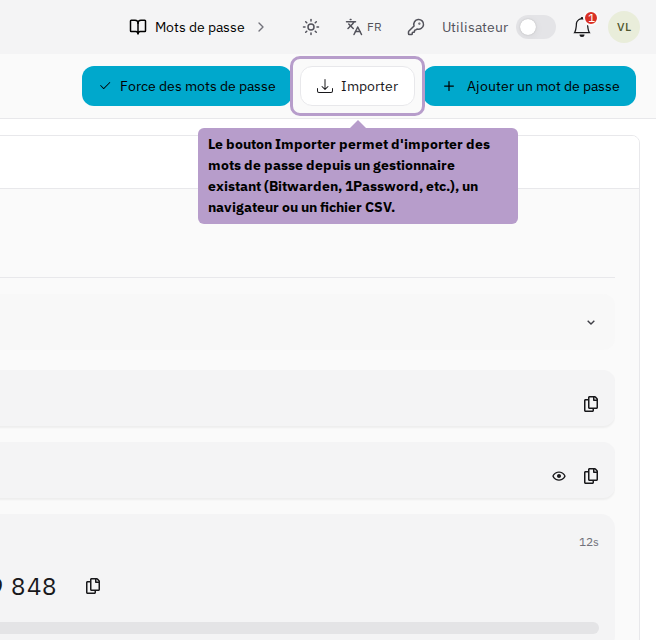
The Import button allows you to migrate your passwords from an existing manager (Bitwarden, 1Password, etc.), a browser, or a CSV file.
Password Strength
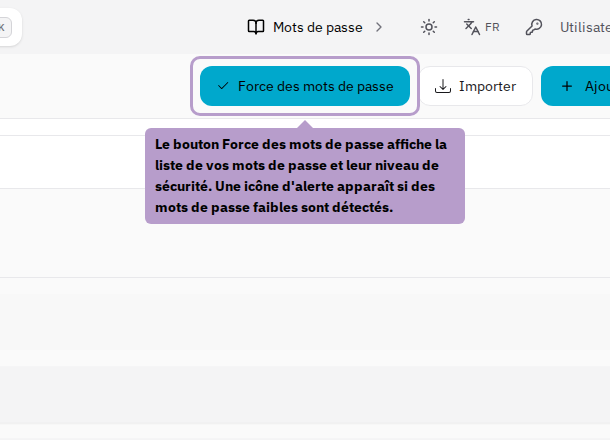
The Password Strength button displays the complete list of your passwords and their security level. An alert icon appears in the toolbar if weak or very weak passwords are detected.