Common Application Password
In a Password Manager type application, you can set a common password per folder. This password will be used by all users in the folder to log into the application.
Step 1: Access the Share Tab
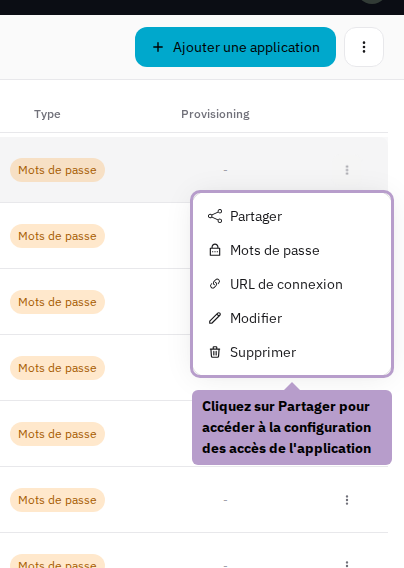
From the list of applications, open the action menu of an application and click on Share.
Step 2: Share the Application with a Folder
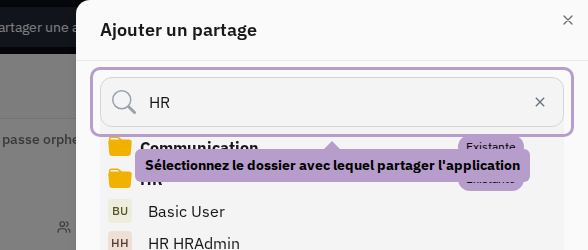
Click on the Add button and select a folder.
Step 3: Configure the Common Password
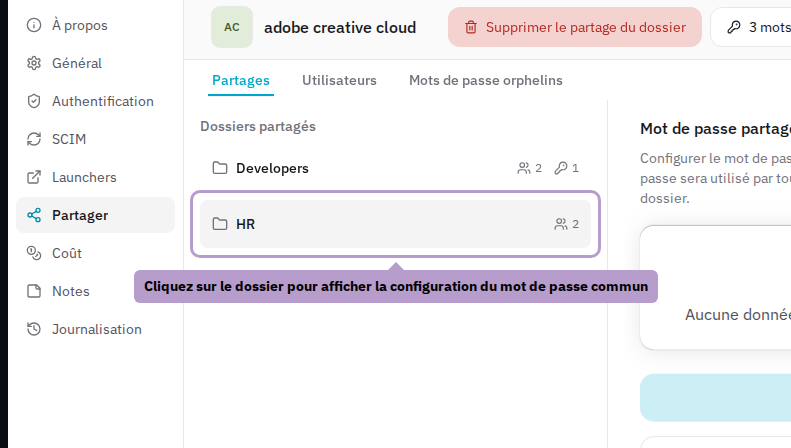
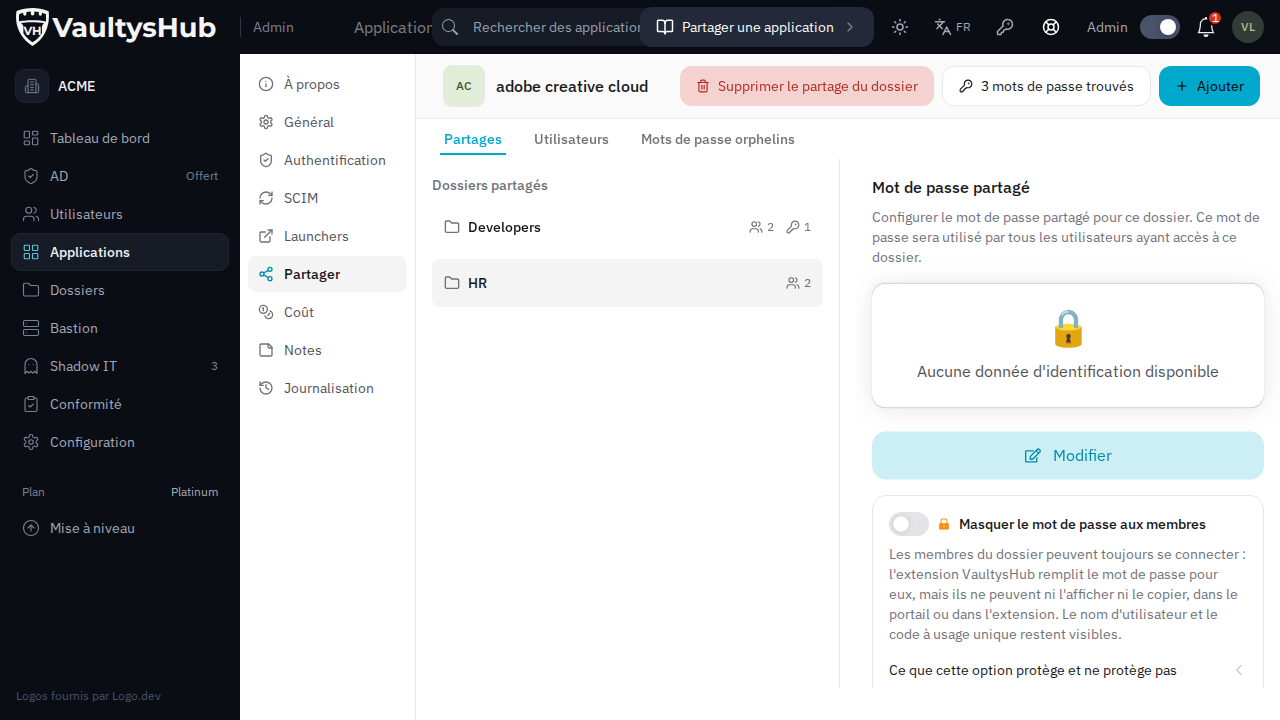
Once the folder is selected from the list, the right panel displays the shared password configuration. Enter the username and password that all users in the folder will have access to.
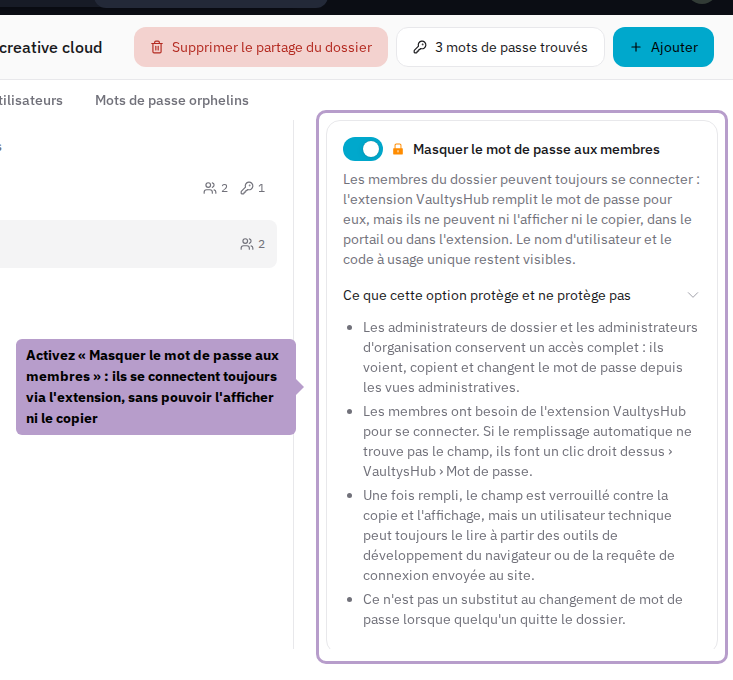
Hide the Password
You can provide the use of a shared account without giving the knowledge: folder members log into the application but cannot view or copy the password, thus cannot reuse it elsewhere or transmit it.
The option is set for each application in a folder, under the common password configuration: enable Hide the password from members.
What Changes for Members
- Portal (computer and mobile): the password appears as "Hidden by the administrator," with no button to display or copy it. The server no longer sends it to the user interface pages at all.
- VaultysHub Extension: no display or copy in the application list; a padlock indicates the hidden password.
- Login: the extension continues to auto-fill the login form. If the auto-fill does not find the field, the member right-clicks in the field › VaultysHub › Password › application – folder.
- Filled Field: once the password is injected by the extension, the page field is locked: copying, cutting, dragging, or selecting its content is blocked, and if the page, a site's "eye" button, or development tools make it plaintext, the field is cleared. The lock is released as soon as the member clears the field or types another password.
Only the password is hidden: the username and one-time code (TOTP) remain visible and copyable.
Who Retains Full Access
| View / copy the password | Modify it | Enable / disable the option | |
|---|---|---|---|
| Folder members (role User) | No | No | No |
| Folder administrators | Yes, from the folder administration | Yes | Yes |
| Organization administrators | Yes, from the administration views and their vault | Yes | Yes |
In the extension, the password remains hidden for everyone. A folder administrator can view and modify it from the administration page of their folder; an organization administrator can do so from the administration views (applications, folders) or their vault, where a banner reminds that the password is hidden from members.
The activation and deactivation of the option are recorded in the audit log.
This is not absolute protection. Once injected by the extension, the password is in the page field: the locking prevents ordinary copying and displaying, but a technical user can still read the field value from the development tools console or intercept the login request sent to the site.
The option prevents ordinary viewing and copying and removes the password from server responses intended for the interface. It does not replace a password change when a member leaves the folder.
Personal passwords are not affected: the option only applies to the common password of a folder.